Display Pop-Up Error Messages In An ASP.NET Application
I came across an issue in which someone needed to pop-up a Window to display an error message to users in their ASP.NET application. I did some research and discovered this very handy bit of code that will display a JavaScript Alert MessageBox that you can populate with the error message.
Below is an example I created that purposely causes a DivisonByZero Exception and displays this in a JavaScript Alert MessageBox.
int num1 = 10;
int num2 = 0;
int result;

try
{
result = n1 /n2;
}
catch (DivideByZeroException ex)
{
DisplayErrorMsg(ex);
}


private void DisplayErrorMsg(Exception ex)
{
RegisterStartupScript(Guid.NewGuid().ToString(),
string.Format("<script language='Javascript'>alert('{0}');</script>", ex.Message));
}
Populate The Display Text Of A CollapsiblePanel Control From A File
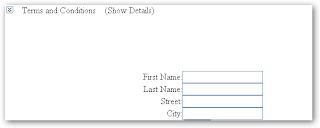
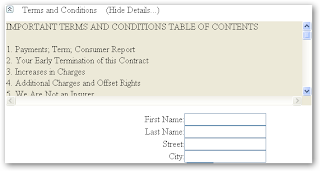
I had the need to populate the text to be displayed in an ASP.NET AJAX CollapsiblePanel Control via a text file as opposed to just embedding the text between a tag of my Content Panel. I had to display a large amount of text that displayed some Terms and Conditions and there was just to much to put between the tags. Besides it really would make the code ugly having all of that text embedded.
The solution I decided to go with was to create a Web User Control and fill the control with the text to be displayed. Then I went back to the page that I was going to display this text on and dropped the Custom Control inside of my CollapsiblePanel's ContentPanel. I then went into the HTML source of the page and surrounded the ContentPanel with a Div tag and sat the height, overflow, and background color.
<ajaxToolkit:CollapsiblePanelExtender ID="CollapsiblePanelExtender1" runat="server"
TargetControlID="ContentPanel"
ExpandControlID="TitlePanel"
CollapseControlID="TitlePanel"
Collapsed="false"
TextLabelID="Label1"
ExpandedText="(Hide Details...)"
CollapsedText="(Show Details)"
ImageControlID="Image1"
CollapsedImage="images/expand.jpg"
ExpandedImage="images/collapse.jpg"
SuppressPostBack="true">
</ajaxToolkit:CollapsiblePanelExtender>
<asp:Panel ID="TitlePanel" runat="server" Height="30px" Width="545px">
<asp:Image ID="Image1" runat="server" ImageUrl="~/images/expand.jpg"/>
Terms and Conditions
<asp:Label ID="Label1" runat="server" Text="Label">(Show Details ...)</asp:Label>
</asp:Panel>
<asp:Panel ID="ContentPanel" runat="server" Height="0px" Width="545px">
<div style="height:150px;overflow:scroll;background-color:ButtonFace;" >
<uc2:Terms ID="Terms1" runat="server" /></div>
</asp:Panel>


